 Punte
PunteEverything you need to use your Mac from somewhere else.
Punte was built for one job: reaching a Mac. Here is what that takes, from a locked screen to a Swiss keyboard.
Your Mac locked itself. Unlock it from your iPad.
macOS doesn't let apps show or control the lock screen. So when your Mac locks, Punte hands over to the Mac's own Screen Sharing, carried inside Punte's encrypted connection. Nothing extra is opened on your network for it.
- Your device shows Your Mac is locked. Sign in with your Mac account to see the login screen.
- Tap it and type, or use Type Password & Return.
- Once the Mac unlocks, the normal picture comes back by itself.
- Remember on this iPad keeps the sign-in in the device's keychain, for that Mac only.
- When the session ends, macOS locks the Mac again.
Turn on Screen Sharing on the Mac (System Settings → General → Sharing) and Allow unlocking via Screen Sharing in Punte Host's Security settings. It's off until you turn it on. The Mac must have been unlocked once since it started.
A resolution that fits your screen, and always comes back.
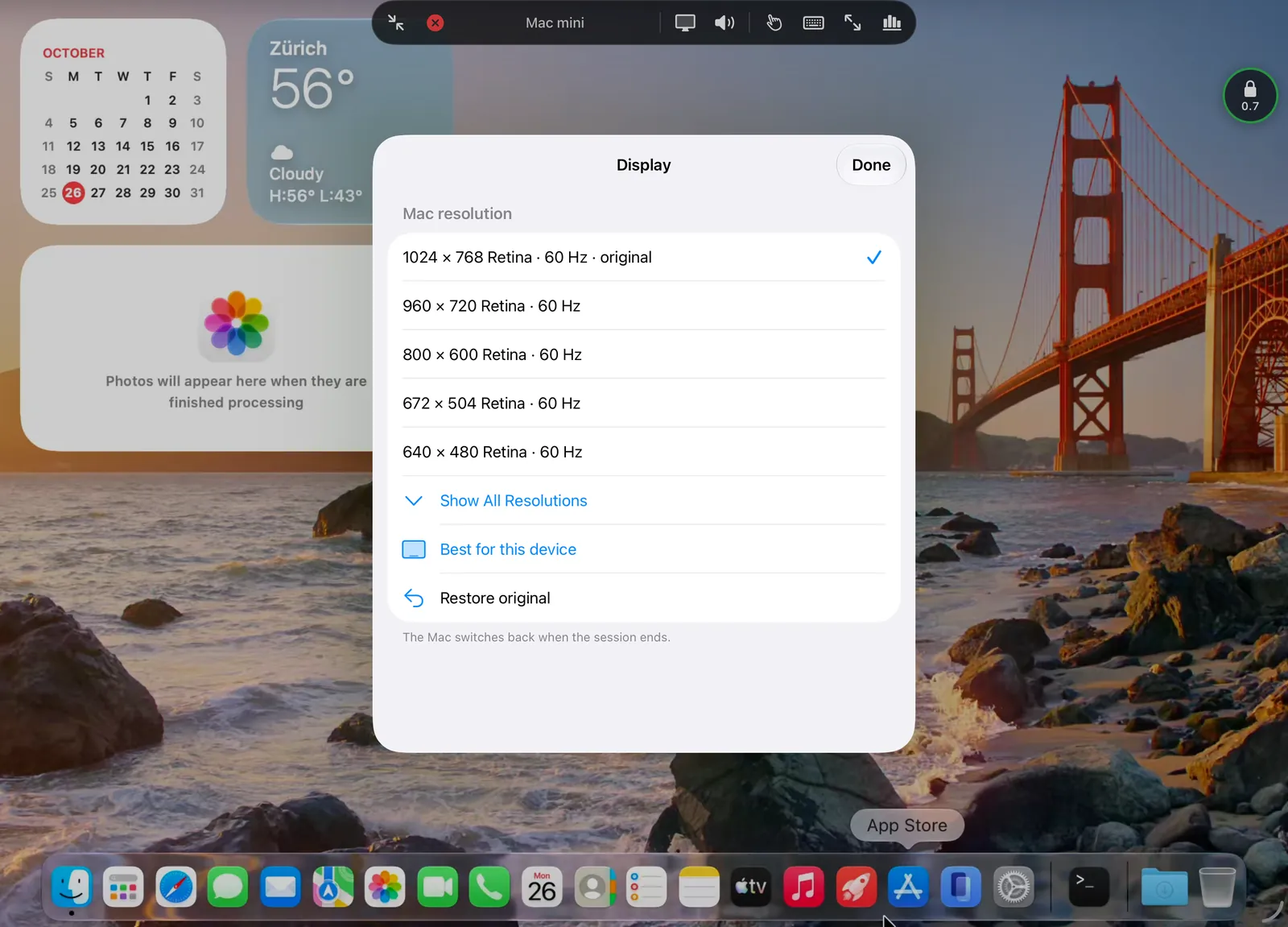
A 27-inch desktop squeezed onto a phone is hard to read. Punte can switch the Mac to a size that fits the device you're holding, and lists only the sizes that do.
- Best for this device picks the size that fits your screen.
- Retina sizes draw each point with 2 × 2 pixels, so text stays sharp.
- Show All Resolutions lists every size the display offers.
- With several displays, choose which one to see. Clicks and changes apply to it.
- Or let the Mac match your device each time you connect.
The Mac switches back when the session ends, however it ends: you disconnect, the app closes, the network drops, even if Punte Host quits or crashes. Changing the resolution is off until you allow it on the Mac.
30 fps for work. 60 when it moves.
Like most remote desktops, Punte streams at 30 frames per second by default. That's plenty for documents, code and mail, at about half the battery and data of 60. Turn on Smoother motion for a Mac when you watch video or animations.
The video is encoded by the Mac's hardware in HEVC or H.264, and the bitrate follows your network. For a slow VPN link, Data saver keeps it to about 1080p at 30 fps. Low Power Mode on your device keeps 30 fps.
The statistics overlay shows the frame rate, bitrate, round trip, decode time and codec as you go.
Hear your Mac. Copy on one side, paste on the other.
Sound
The Mac's sound plays on your device, in AAC. Mute it from the controls, per Mac or for the moment. Nothing is sent while the Mac is silent.
Clipboard, both ways
Copy text or an image on the Mac and paste it on your device, or the other way round. The paste button sends your clipboard right away.
Shared only when you say so
Clipboard sync is off until you turn it on for that Mac on your device and allow it for that device on the Mac. Only copies made during the session are shared.
Sensible limits
Text up to 1 MB and images up to 8 MB. Passwords and other items apps mark as private are never sent.
Control it like a trackpad, or touch it directly.
In Trackpad mode your finger moves the Mac's pointer, the way a MacBook's trackpad does. In Direct touch, a tap clicks exactly where you tap. Choose per Mac, switch any time.
On an iPad with a trackpad or mouse, the pointer moves the Mac's directly; in full screen, Punte locks the pointer so it never leaves the picture. The Apple Pencil works as a precise pointer.
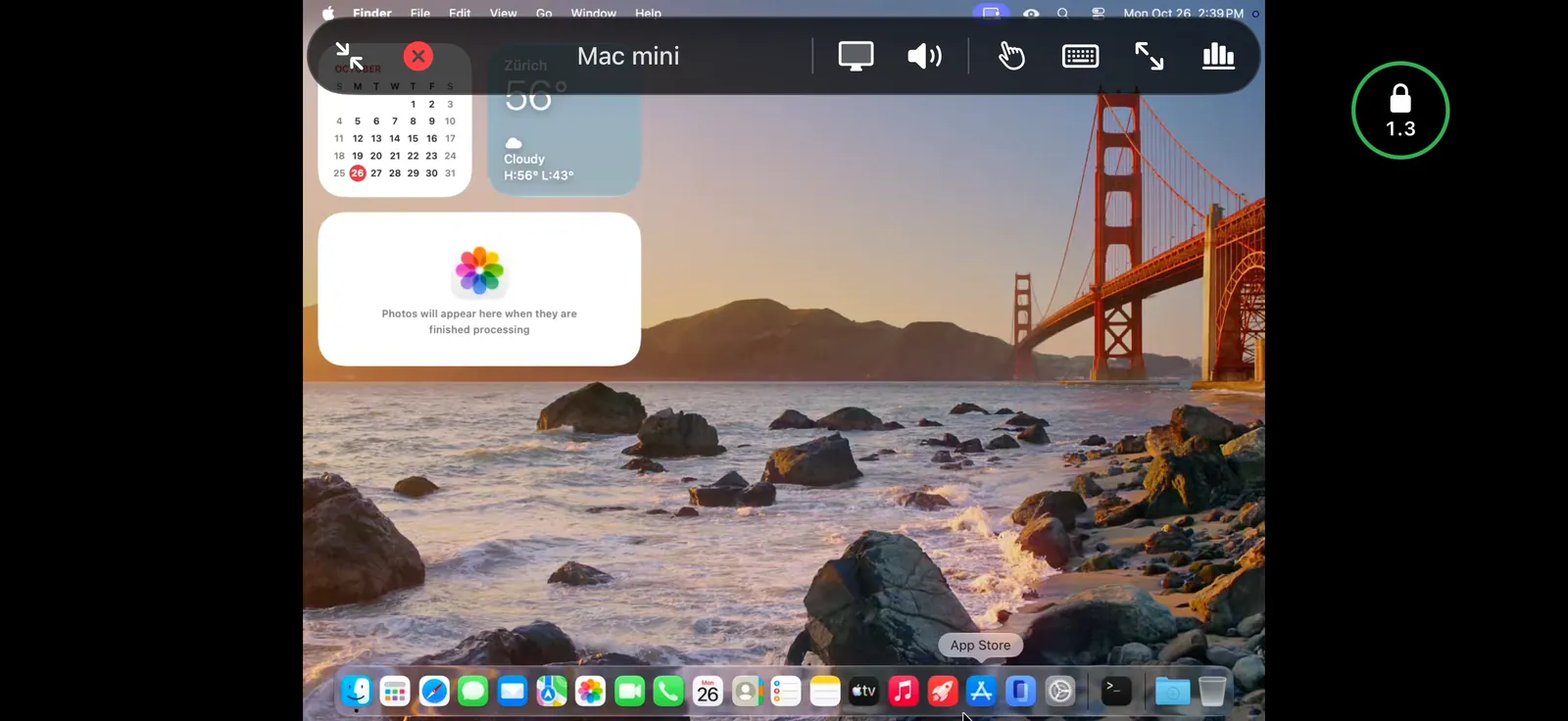
The controls fold into a small ball that shows the connection's quality. Drag it to any edge and it stays there. Tap it for the controls; touches on it never reach the Mac.
- One finger
- Moves the pointer (trackpad) or drags (direct touch)
- Tap
- Click
- Two quick taps
- Double-click
- Touch and hold, then drag
- Drag (trackpad mode)
- Two-finger tap
- Right click
- Two-finger drag
- Scroll, with momentum
- Pinch
- Zoom the picture
- Three-finger drag
- Move the zoomed picture
Type in your language, whatever the Mac is set to.
With Characters, the default, Punte sends what your keyboard layout types, dead keys included. A Swiss German iPad types its own ä, ö and ü on a Mac set to US English. Shortcuts go by meaning, so ⌘Z is undo on both.
With Physical keys, the Mac's own layout decides, as if the keyboard were plugged into it.
The on-screen keyboard adds Escape, Tab, arrows and modifier keys that stay held: ⌘ ⌥ ⌃ ⇧. On the Mac and Windows clients, shortcuts go to the remote Mac, except the few that belong to the computer in front of you.
iPadOS keeps a few shortcuts for itself and never passes them to apps, such as ⌘Tab, ⌘Space and screenshots.
Only your devices, and they prove it every time.
Every connection is TLS 1.3, and both sides present a certificate. Trust comes only from pinning: each side remembers the other's exact key from pairing. There is no certificate authority to fool and no "continue anyway" button. If a key ever changes, Punte refuses and tells you.
Identity keys live in the Secure Enclave of your Mac, iPhone and iPad, and can't be copied off the device.
Pairing uses CPace, a password-authenticated key exchange chosen by the IETF's crypto research group. The code never travels over the network, and each attempt can test only one guess. Five wrong codes close pairing. Then the Mac shows the device's name and fingerprint, and you approve it.
QR pairing fills in the Mac's address, port and code in one scan, with Punte or the Camera app. If the code names a different Mac than the one that answers, nothing is paired.
On the Mac you decide when Punte Host listens, which networks may connect, whether each connection needs your approval, and when idle sessions end. One device at a time; any device can be revoked.
Folded or unfolded, the picture follows.
On iPhone Duo, Apple's foldable, Punte works on the outer screen and the large inner one. Unfold it in the middle of a session and the stream restarts for the new screen at once, sharp from the first frame. Fold it again and it follows back.
One Mac, controlling another.
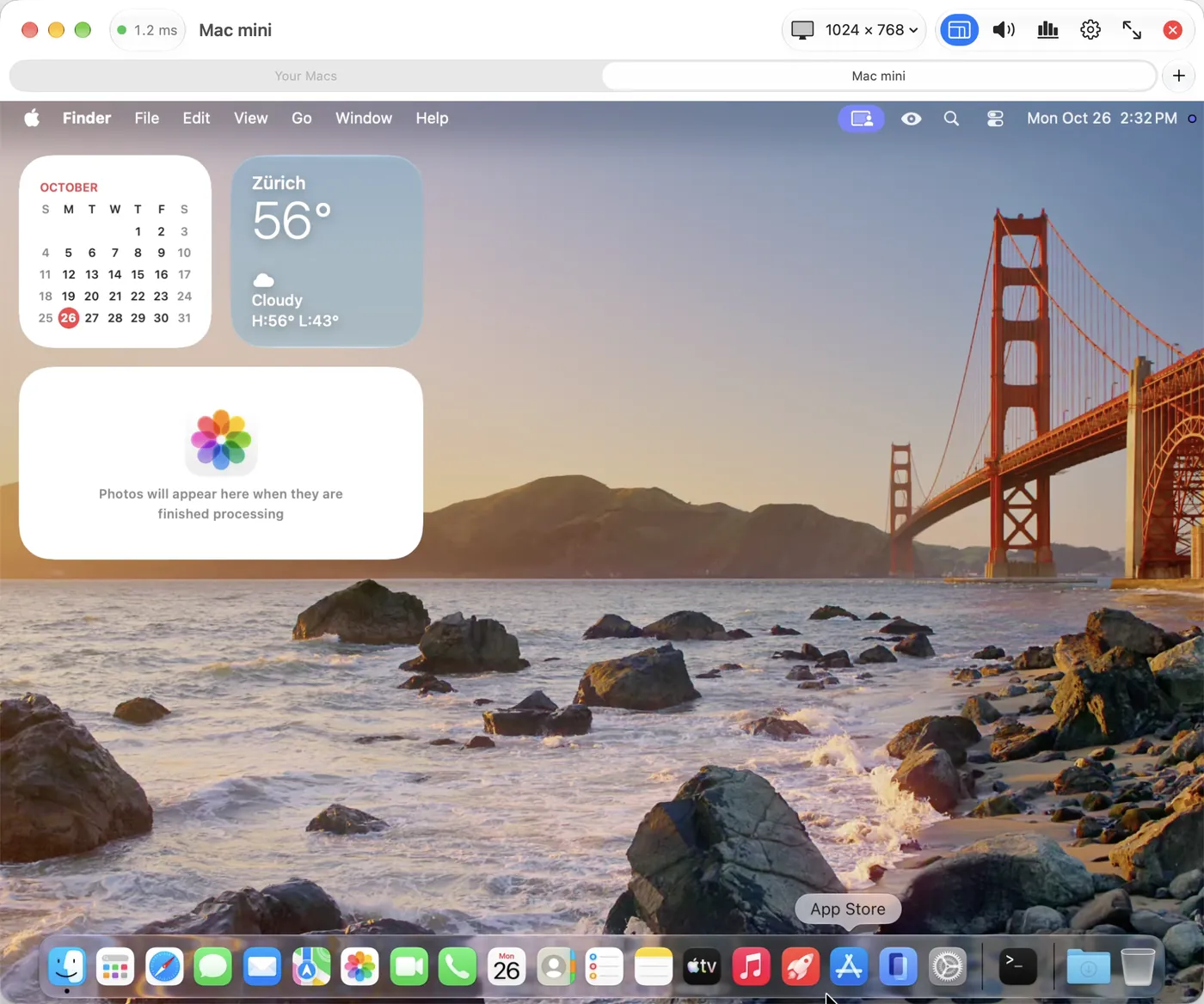
Punte for Mac is a native Mac app, and the same purchase as on iPhone and iPad. Each Mac you connect to opens in a tab; drag a tab out for its own window, side by side.
- The window keeps the remote display's shape as you resize it, and the picture is sent at the window's size.
- The connection bar holds the round trip, the display and resolution, sound, clipboard and statistics.
- In full screen the bar slides away and comes back when the pointer reaches the top.
- Shortcuts go to the remote Mac, except a few that belong to yours, such as ⌘Q and ⌘H.
The details that make it feel finished.
Several saved Macs
Each with its own quality, sound, input mode, keyboard, scrolling direction and clipboard setting. Connect automatically when the app opens, if you like.
Several displays
A Mac with more than one display lets you pick which one to see. Clicks, scrolling and resolution changes go to that display.
Windows
The same features on a Windows 11 PC, locked Mac included, with your PC keyboard's characters on the Mac.
A Mac without a monitor
A Mac mini with no display has nothing to capture. Punte says so, and starts the picture as soon as a display or an HDMI dummy plug is connected.
Sessions that end cleanly
Close the app and the session ends at once. Leave it in the background and it waits up to 10 minutes. After a stretch of no input, you get a warning with Stay connected.
A lock on the app
Optionally ask for Face ID, Touch ID or your passcode before a Mac opens, so a borrowed phone can't reach your desktop.
Always visible on the Mac
The menu bar icon turns into an eye while someone is connected, and a notification says who. An audit log on the Mac lists connections, never what was typed or copied.
No third-party code
The Apple apps use only Apple's frameworks. The protocol is documented, with test vectors, and checked against an independent reference.
Try it free on your own Mac.
Every feature is in the free version. Sessions last up to 10 minutes; Punte Pro removes the limit.